

The quest for a laptop battery that endures is a universal one. Whether you’re a student trying to get through a long day of lectures without a scramble for an outlet, a remote worker tackling deadlines on the go, or a gamer seeking uninterrupted sessions, a dwindling battery can be a significant hindrance. This comprehensive guide will equip you with the knowledge and strategies to maximize your laptop’s battery life, transforming it from a source of anxiety into a reliable companion.
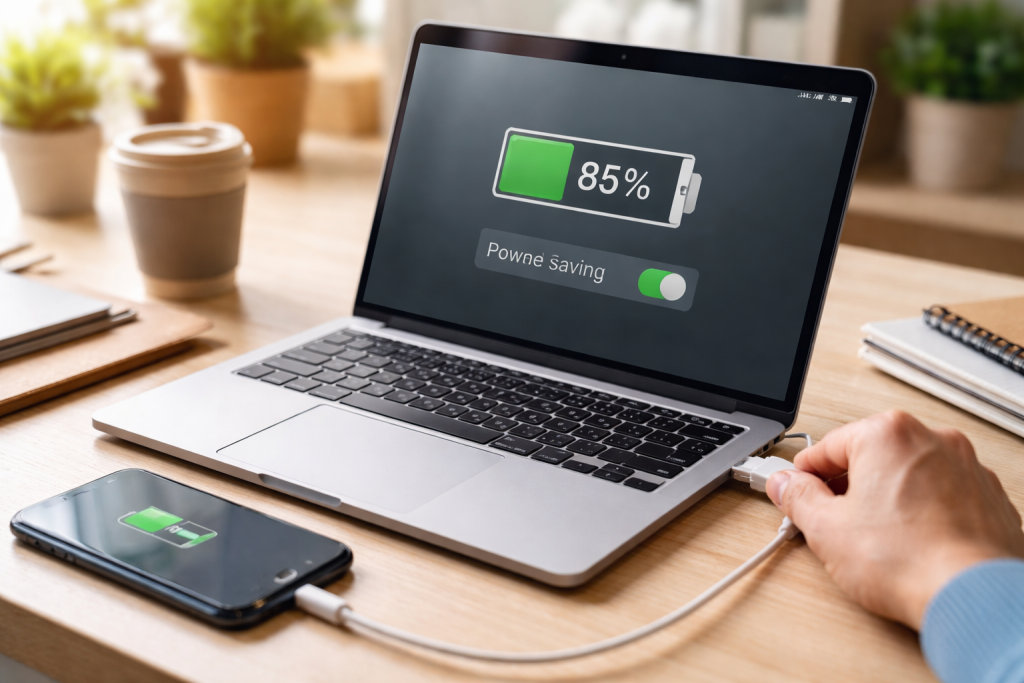
Understanding what influences your laptop’s battery life is a foundational step toward extending it. It’s not a single culprit, but a complex relationship between hardware, software, and usage habits.
Contents
- 1 The Hardware Heartbeat: Components and Their Demands
- 2 Software’s Silent Symphony: The Energy Drain of Processes
- 3 Your Usage Footprint: Habits That Matter
- 4 The Power Management Maestro: Tailoring Your Plan
- 5 Screen Brightness: The Glow of Efficiency
- 6 Connectivity Control: The Wireless Wisps
- 7 Security and Efficiency: The Twin Pillars of Updates
- 8 Restoring Accuracy: Understanding the Process
- 9 The Cycle of Renewal: When and How
- 10 The Golden Mean: Optimal Temperature Ranges
- 11 Heat Management: Strategies for Longevity
- 12 The Adaptive Advantage: Auto-Brightness and Its Quirks
- 13 The Power of Dimming: Gradual Reductions
- 14 Identifying the Culprits: Task Manager and Activity Monitor
- 15 The Art of Shutdown: Closing What’s Not Needed
- 16 The Storage Sweet Spot: Temperature and Charge Level
- 17 The Protective Shell: Preventing Damage
- 18 Combating Heat: Efficient Heat Dissipation
- 19 Extending Workloads: Sustained Performance
- 20 Battery Health Monitoring: Staying Informed
- 21 Smart Charging Habits: The Nuances of Power
The Hardware Heartbeat: Components and Their Demands
At the core of your laptop’s power consumption are its internal components. The processor (CPU) is a major energy hog, its workload directly correlating to power draw. Similarly, the graphics processing unit (GPU), especially during demanding tasks like gaming or video editing, significantly drains the battery. The display itself, while essential for interaction, is another prominent energy consumer. Even smaller components like Wi-Fi and Bluetooth radios, once activated, continuously draw power to maintain connections.
Software’s Silent Symphony: The Energy Drain of Processes
Beyond the physical components, software plays a critical role. Every application you run, from your web browser to your word processor, requires processing power and thus energy. Yet, some applications are more resource-intensive than others. Background processes, often running unnoticed, can be silent saboteurs of your battery life. These include system updates constantly checked for new versions, cloud synchronization services, and automated maintenance tasks. The operating system itself, with its myriad of services and features, also contributes to the overall power demand.
Your Usage Footprint: Habits That Matter
Ultimately, how you use your laptop profoundly impacts battery longevity. Intensive activities, like streaming high-definition video or playing graphically demanding games, naturally deplete the battery faster than light browsing or document creation. Even seemingly minor actions, like frequently opening and closing applications or leaving your laptop in an always-on state without proper power management, contribute to cumulative battery drain.
Once you understand the factors at play, you can begin to actively manage your laptop’s power consumption through intelligent settings adjustments.
The Power Management Maestro: Tailoring Your Plan
Most operating systems offer built-in power plans, and understanding their function is key. “High Performance” plans prioritize speed and responsiveness, often at the expense of battery life. Conversely, “Power Saver” or “Balanced” modes are designed to reduce energy consumption. Within these plans, you can often fine-tune specific settings, such as how quickly the display dims or turns off when inactive and when the laptop enters sleep or hibernation mode. Experimenting with these options and finding a balance that suits your workflow is crucial.
Screen Brightness: The Glow of Efficiency
Your laptop’s screen brightness is one of the most immediate and impactful settings you can control. A brighter screen requires more power. While a dim screen might not be ideal for outdoor use, reducing brightness to a comfortable level indoors can significantly extend your battery life. Many laptops have function keys for quick brightness adjustments, making it an effortless habit to adopt.
Connectivity Control: The Wireless Wisps
Wi-Fi and Bluetooth, while indispensable for modern computing, are constant drains on battery power. When you don’t need them, disabling them can yield noticeable improvements. This aspect is particularly relevant when you’re working offline or in an area with no available Wi-Fi networks. Similarly, if you’re not using any Bluetooth devices, turning off Bluetooth further conserves energy.
The seemingly mundane task of updating your operating system holds a surprising significance for battery life.
Security and Efficiency: The Twin Pillars of Updates
Operating system updates are not just about introducing new features or squashing bugs; they often include optimizations for power management and hardware efficiency. Developers work to identify and address energy-intensive processes that may have crept into previous versions. By regularly installing these updates, you ensure that your laptop’s software is running as efficiently as possible, leading to reduced power consumption. Furthermore, many updates also patch security vulnerabilities, a crucial aspect of maintaining your laptop’s overall health and longevity. Neglecting updates can leave your system exposed to malware, which can itself be a significant battery drain as it consumes resources in the background.
Modern lithium-ion batteries are sophisticated, but over time, their internal battery management systems can become slightly misaligned with the actual charge capacity. This is where calibration comes in.
Restoring Accuracy: Understanding the Process
Battery calibration involves fully charging your laptop, then letting it discharge until it shuts down completely, and then charging it back to 100% without interruption. This process helps the battery management system to accurately read the battery’s charge level. Over time, a battery can indicate it’s at 20% when it’s actually closer to 10%, leading to premature shutdowns. While this process won’t magically increase your battery’s total capacity, it will ensure that you are getting the most accurate representation of its remaining charge.
The Cycle of Renewal: When and How
Manufacturers may recommend specific calibration intervals, but it’s generally recommended to perform a calibration once every few months or if you observe significant discrepancies between the displayed battery percentage and your laptop’s actual runtime. Ensure you follow the manufacturer’s specific instructions for your model, as the process can vary slightly between brands.
Your laptop’s battery is sensitive to its environment, and temperature is a significant contributor to its degradation.
The Golden Mean: Optimal Temperature Ranges
Extremes of temperature are detrimental to lithium-ion batteries. High temperatures, in particular, accelerate the chemical reactions within the battery, leading to faster degradation of capacity and reduced lifespan. Conversely, extremely cold temperatures can temporarily reduce battery performance and may lead to inaccurate readings. The ideal operating temperature for most laptop batteries is between 15°C and 35°C (59°F to 95°F). Avoid leaving your laptop in a hot car, direct sunlight, or near heat sources for extended periods.
Heat Management: Strategies for Longevity
When your laptop is working hard, it generates heat, which can further stress the battery. Ensuring proper ventilation is crucial. Avoid using your laptop on soft surfaces like beds or carpets, which can block air vents. Consider using a laptop cooling pad, especially if you frequently engage in demanding tasks.
Reiterating the importance of screen brightness, it’s worth learning more about practical management.
The Adaptive Advantage: Auto-Brightness and Its Quirks
Many modern laptops feature an ambient light sensor that automatically adjusts screen brightness based on the surrounding light conditions. While this can be convenient, it can sometimes be overly aggressive, dimming the screen to an impractical level in moderately lit environments or keeping it too bright in dark settings, thus draining battery unnecessarily. Manually overriding auto-brightness and setting a comfortable, lower level is often more energy-efficient.
The Power of Dimming: Gradual Reductions
Even small reductions in screen brightness can have a cumulative effect. Don’t be afraid to progressively dim your screen as the ambient light decreases. The goal is to find a level that is still comfortable for your eyes while maximizing battery savings.
The applications that hum along in the background, often out of sight, can be significant culprits in battery depletion.
Identifying the Culprits: Task Manager and Activity Monitor
Both Windows (Task Manager) and macOS (Activity Monitor) provide tools to monitor which applications and processes are consuming the most resources, including CPU, memory, and energy. Regularly checking these tools can help you identify power-hungry background apps that you might not need running.
The Art of Shutdown: Closing What’s Not Needed
Make it a habit to close applications and browser tabs that you are no longer actively using. Even a few open browser tabs, especially those with active content like videos or auto-refreshing news feeds, can silently consume power. For applications you rarely use, consider uninstalling them altogether.
How you store your laptop when it’s not in use can also play a role in preserving battery health.
The Storage Sweet Spot: Temperature and Charge Level
For long-term storage, it’s best to store your laptop in a cool, dry place. Ideally, the battery should be charged to around 50-60%. Storing a fully charged battery for extended periods, especially at higher temperatures, can degrade its capacity more rapidly. Conversely, storing a completely depleted battery for a long time can also be detrimental, potentially leading to a state where it cannot be recharged.
The Protective Shell: Preventing Damage
Ensure your laptop is stored in a protective case or cover to prevent physical damage, which could indirectly affect battery components. Avoid stacking heavy items on top of your laptop when storing it.
For users who frequently push their laptops to their limits, a cooling pad can offer significant benefits for battery health.
Combating Heat: Efficient Heat Dissipation
As mentioned, heat is a battery’s enemy. Cooling pads, equipped with fans, actively draw heat away from the laptop’s chassis, reducing overall operating temperatures. This helps the components run more efficiently and significantly mitigates the heat stress on the battery itself, contributing to its longevity.
Extending Workloads: Sustained Performance
By keeping the laptop cooler, a cooling pad can also help prevent thermal throttling, where the laptop’s performance is intentionally reduced to prevent overheating. This means you can maintain higher performance levels for longer periods without unduly taxing the battery and its components.
Extending your laptop’s battery life isn’t a one-time fix; it’s an ongoing process of mindful use and maintenance.
Battery Health Monitoring: Staying Informed
Many operating systems and battery manufacturers offer tools to monitor your battery’s health, indicating its current capacity relative to its original design capacity. Regularly checking this can provide an early warning if your battery is degrading faster than expected, prompting you to consider replacement or further optimization.
Smart Charging Habits: The Nuances of Power
While modern batteries are designed to be left plugged in without overcharging, consistently leaving your laptop plugged into the wall for 100% of the time might not be ideal for its long-term health. Some manufacturers offer battery management software that allows you to set a maximum charge limit (e.g., 80%), which can help reduce stress on the battery and extend its lifespan. When possible, allowing the battery to discharge naturally to a moderate level before recharging can also be beneficial.
By implementing these strategies and understanding the complicated relationship between your usage habits, the laptop’s hardware and software, and its environment, you can significantly prolong your laptop’s battery life, ensuring it remains a reliable and powerful tool for years to come.

About the Author
Muqadas Ali is the founder of SmartLearningWay with over 5 years of experience in blogging and digital learning. His mission is to help students and professionals improve productivity using simple methods and modern tools.


