

lectures. In today’s fast-paced digital landscape, efficiency is paramount. Whether you’re a student grappling with research papers and online lectures or a professional juggling reports and virtual meetings, the demands on your digital workspace are ever-growing. The single screen, once a beacon of technological advancement, often feels like a bottleneck, limiting simultaneous visibility and hindering seamless multitasking. A dual-screen setup truly shines in this situation, transforming a cluttered digital space into an organized, expansive canvas for productivity. Embracing two monitors isn’t just about adding more pixels; it’s about fundamentally rethinking how you interact with your digital environment, unlocking new levels of focus, speed, and creative output.
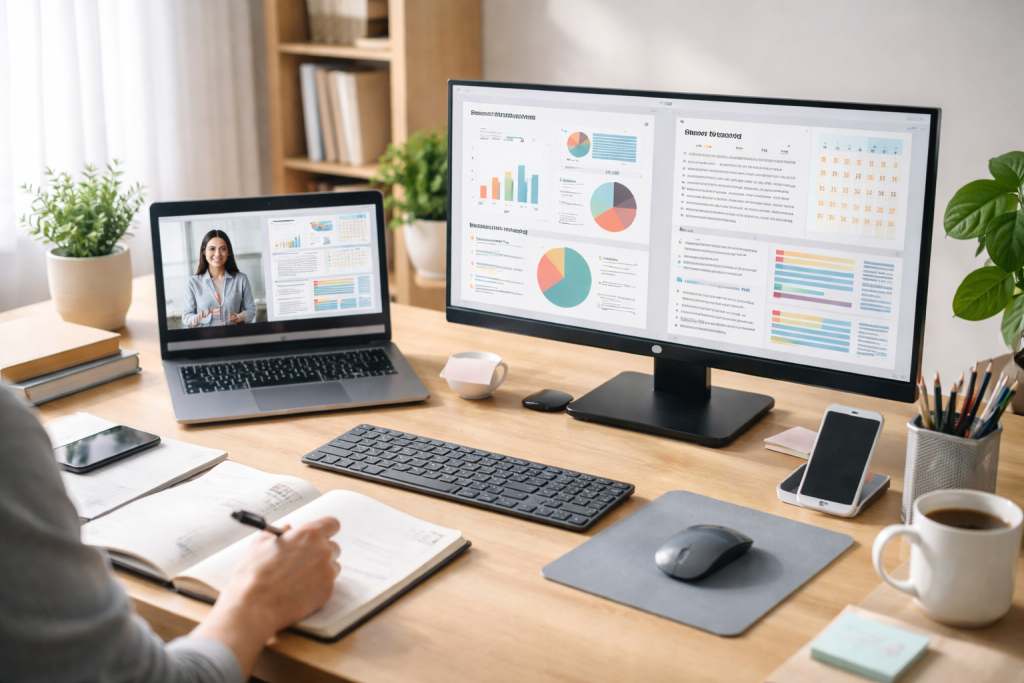
The advantages of expanding your digital real estate are immediate and profound, impacting everything from your concentration levels to the speed at which you complete tasks.
Contents
- 1 Enhanced Multitasking and Reduced Context Switching
- 2 Increased Productivity and Accuracy
- 3 Improved Organization and Workflow Visualization
- 4 Desktop Monitor Configurations
- 5 Portable and Mobile Solutions
- 6 Optimizing Your Existing Hardware
- 7 Ergonomics and Positioning
- 8 Keyboard Shortcuts and Software Utilities
- 9 Backgrounds and Themes
- 10 Dedicated Application Placement
- 11 Reference and Comparison Workflows
- 12 Presenting and Participating in Virtual Meetings
- 13 Project-Specific Layouts
- 14 Visualizing Workflows and Progress
- 15 Preventing Digital Clutter
- 16 Shared Document Editing and Communication
- 17 Interactive Presentations and Workshops
- 18 Whiteboard and Brainstorming Spaces
- 19 Operating System Features and Settings
- 20 Third-Party Software and Utilities
- 21 Physical Arrangement and Accessories
- 22 Eye Strain and Ergonomic Issues
- 23 Digital Clutter and Distraction Management
- 24 Technical Troubleshooting and Compatibility
- 25 Gradual Adaptation and Experimentation
- 26 Establishing Dual-Screen Habits
- 27 Regular Review and Optimization
- 28 Essential Hardware and Accessories
- 29 Software for Enhanced Management
- 30 Online Communities and Tutorials
Enhanced Multitasking and Reduced Context Switching
One of the most significant boons of a dual-screen setup is its ability to dramatically improve multitasking. Imagine having your research document open on one screen while simultaneously browsing academic journals or referencing data on the other. This eliminates the constant alt-tabbing or window-minimizing dance that characterizes single-screen usage, a process known as context switching. Each time you switch between applications, your brain expends energy reorienting itself, breaking your flow and eroding efficiency. With dual screens, both applications remain visible and immediately accessible, allowing for a more fluid and less disruptive workflow. For students, this means effortlessly cross-referencing lecture notes with textbook chapters or maintaining a video call on one screen while taking notes on the other. Professionals can seamlessly switch between their email client and project management software, or between a spreadsheet and a presentation, without any interruptions.
Increased Productivity and Accuracy
The reduction in context switching directly translates to a tangible increase in productivity. Studies have shown that dual-screen users often complete tasks faster and with fewer errors. Laying out information side-by-side facilitates data comparison, discrepancy identification, and accuracy assurance. Designers can work on their creation on one screen while viewing reference images on another. Programmers can write code on one monitor while debugging logs or reviewing documentation on the second. The sheer ease of referencing information without shuffling windows reduces mental fatigue and allows for more focused, sustained work periods. This enhanced productivity isn’t just about speed; it’s about the quality of the output, as fewer distractions lead to more thoughtful and precise work.
Improved Organization and Workflow Visualization
A dual-screen setup inherently promotes better organization by providing dedicated spaces for different aspects of your workflow. You can dedicate one screen to communication tools like email and chat, while the other is reserved for active work. This clear delineation can help manage distractions and maintain focus. Furthermore, it allows for a more comprehensive visualization of your workflow. Instead of having to mentally recall what’s open in another window, you can visually track your progress across multiple applications. This holistic view can be incredibly beneficial for project management, data analysis, and any task that involves synthesizing information from various sources.
There is no universal solution for the perfect dual-screen setup. It depends on your specific work or study habits, your budget, and the available space.
Desktop Monitor Configurations
For a fixed workstation, a desktop monitor setup offers the most flexibility and power. You can opt for two identical monitors for a seamless visual experience or a primary larger monitor paired with a smaller secondary one for specific tasks. Consider factors like screen size (24-27 inches are popular for desktops), resolution (1080p is standard, 1440p offers more screen real estate), and panel type (IPS for wider viewing angles and color accuracy). Monitor arms are an excellent investment, allowing for ergonomic positioning, freeing up desk space, and supporting both horizontal and vertical orientations.
Portable and Mobile Solutions
For students or professionals who are frequently on the go, portable monitors offer a lightweight and compact alternative. These USB-C-powered screens can often be plugged directly into a laptop, instantly expanding your workspace. Tablets, too, can be repurposed as secondary displays using applications that extend your desktop over Wi-Fi or a wired connection. While not as robust as dedicated desktop monitors, these solutions provide a significant boost in productivity for mobile users, allowing for efficient work in coffee shops, libraries, or during travel.
Optimizing Your Existing Hardware
Before investing in new monitors, consider if your current hardware can support a dual-screen setup. Most modern laptops and desktop computers come equipped with multiple video output ports (HDMI, DisplayPort, and USB-C). Check your device’s specifications to ensure compatibility and the availability of the necessary cables. Sometimes, a simple adapter can transform a single output into a dual-display solution, making the transition to a two-screen setup more accessible and budget-friendly.
Once you’ve chosen your setup, a few key optimizations can elevate your dual-screen experience from functional to truly exceptional.
Ergonomics and Positioning
Proper ergonomics are crucial to prevent strain and fatigue. Position your primary monitor directly in front of you, with the top of the screen at or slightly below eye level. The secondary monitor should be placed to its left or right, at a comfortable viewing angle that requires minimal head turning. Experiment with angles and distances to find what feels most natural. Monitor arms are invaluable here, allowing for precise adjustments in height, tilt, and swivel. Consider using a standing desk adapter or a fully adjustable standing desk to alternate between sitting and standing throughout the day, further promoting healthy posture and reducing sedentary time.
Keyboard Shortcuts and Software Utilities
Mastering keyboard shortcuts is a game-changer for dual-screen users. Learn Windows Snap (Windows keys + arrow keys) or macOS Split View equivalents to quickly arrange windows. Utilities like FancyZones (part of Microsoft PowerToys) or Magnet (macOS) offer advanced window management, creating custom snap zones and effortlessly organizing your applications across both screens. These tools streamline the process of arranging your workspace, making it quick and intuitive to set up your ideal layout for any task.
Backgrounds and Themes
While seemingly aesthetic, a unified or thoughtfully chosen background across both screens can contribute to a more cohesive and less distracting workspace. Avoid overly busy or disparate backgrounds that can clash and pull your focus. Some operating systems allow you to extend a single wallpaper across both screens, creating an expansive, unified canvas. Alternatively, subtle, calming patterns or solid colors can create a sense of calm and order, enhancing your ability to concentrate.
The true power of dual screens lies in strategically allocating your digital space to maximize output.
Dedicated Application Placement
Develop a habit of dedicating specific applications to specific screens. For instance, your primary screen might be for active work—writing, coding, or designing—while your secondary screen hosts reference materials, communication tools, or background applications. Keeping your email client or messaging apps confined to a secondary screen allows you to glance at notifications without completely disrupting your primary task. This systematic approach reduces cognitive load and promotes a more focused workflow.
Reference and Comparison Workflows
Dual screens excel in scenarios requiring constant reference and comparison. Students can have source material open on one screen while writing an essay on the other. Data analysts can display raw data on one monitor and charts or analysis tools on the other. On one screen, lawyers can examine contracts; on another, they can review legal precedents. The ability to see both pieces of information simultaneously eliminates the mental gymnastics of remembering details from a hidden window, leading to more accurate and efficient work.
Presenting and Participating in Virtual Meetings
For virtual meetings, a dual-screen setup is invaluable. You can have the video call or presentation on one screen, allowing you to see your colleagues or the presenter clearly, while using the second screen for taking notes, accessing relevant documents, or reviewing your presentation materials. This ensures you remain engaged and informed without having to constantly switch between applications, making for a much smoother and more professional virtual interaction.
Effectively managing multiple tasks with dual screens is about intentional setup and leveraging the expanded real estate for simultaneous progress.
Project-Specific Layouts
For different projects or tasks, consider creating specific window layouts that you can quickly recall. For example, a writing project might involve your word processor on the primary screen and research PDFs on the secondary. A coding project might put your IDE on one screen and the terminal/documentation on the other. Tools like FancyZones can help save and load these layouts, allowing you to transition between different work modes almost instantly. This consistency reduces setup time and helps you get straight into the task at hand.
Visualizing Workflows and Progress
The expanded view offered by dual screens allows for a more effective visualization of your overall workflow and progress. You can have a project management tool or a to-do list open on one screen, providing a constant overview of your outstanding tasks and deadlines. This visual reminder can greatly assist in prioritizing tasks, ensuring that nothing is overlooked, thereby improving time management and reducing stress.
Preventing Digital Clutter
Although dual screens provide additional space, it’s crucial to avoid overcrowding your workspace with open applications. Just as a physical desk can become cluttered, a digital workspace can suffer the same fate. Be mindful of what you keep open. Shut down any applications that don’t require immediate attention. Periodically clean up your desktop and organize your files. The goal is to expand your workspace efficiently, not to create a larger space for disorganization.
Dual screens aren’t just for individual efficiency; they can significantly enhance collaborative efforts.
One screen can dedicate itself to the shared document during group projects or collaborative document editing, enabling all participants to view changes in real-time. The other screen can host a communication platform (video call, chat application) and any supplementary materials, such as shared research findings or task lists. This setup facilitates seamless communication and real-time review of work, making the collaboration process far more interactive and productive.
Interactive Presentations and Workshops
When leading or participating in virtual presentations and workshops, a dual-screen setup allows you to display your presentation slides on one monitor for the audience while keeping your speaker notes, chat window, or participant view open on the other. This ensures you maintain eye contact, respond to questions promptly, and deliver a smooth, professional presentation without fumbling through windows.
Whiteboard and Brainstorming Spaces
Many online collaboration tools now offer digital whiteboards and brainstorming spaces. With two screens, one can be dedicated purely to this interactive canvas, allowing you to contribute ideas, mind maps, or sketches. The other screen can display project requirements, previous notes, or a parallel communication channel, ensuring that brainstorming sessions are well-informed and effectively documented.
Personalization is key to unlocking the full potential of your dual-screen workspace.
Operating System Features and Settings
Dive into your operating system’s display settings. Windows and macOS offer various options for arranging your monitors, adjusting resolutions, and scaling text. Experiment with extending your desktop versus mirroring it. Learn the nuances of hot corners or active screen edges that can trigger specific actions or application launches. Customizing these core settings lays the groundwork for a truly optimized experience.
Third-Party Software and Utilities
Beyond built-in features, a wealth of third-party software can further enhance your dual-screen setup. As mentioned, FancyZones for Windows or Magnet for macOS offer advanced window snapping and management. DisplayFusion provides robust multi-monitor taskbar management, wallpaper customization, and hotkeys for moving windows between screens. Investing in these tools can automate tedious processes and streamline your daily workflow.
Physical Arrangement and Accessories
Consider the physical arrangement of your monitors. Do you prefer them side-by-side in a horizontal orientation, or would a vertical monitor be more beneficial for reading long documents or codes? Monitor arms allow for flexible positioning and can even stack monitors if desk space is limited. Accessories like a comfortable ergonomic keyboard and mouse, a decent webcam, and quality headphones contribute to an overall improved workspace that complements your dual-screen setup.
While highly beneficial, dual screens can present their set of challenges if not managed properly.
Eye Strain and Ergonomic Issues
The increased screen time and potential head movement associated with dual screens can lead to eye strain, neck pain, and headaches. To mitigate this, ensure your monitors are positioned ergonomically, at the correct height and distance. Utilize the 20-20-20 rule (every 20 minutes, look at something 20 feet away for 20 seconds) to rest your eyes. Adjust screen brightness and contrast, and consider blue light filters or glasses to reduce digital eye strain. Regular breaks and stretching are essential.
Digital Clutter and Distraction Management
The temptation to fill every available pixel can lead to a new form of digital clutter. Be intentional about what you open and where it resides. Use the expanded space to organize, not merely to expand chaos. Implement strategies for distraction management, such as temporarily closing non-essential applications or using “do not disturb” modes during focused work periods. The goal is focused expansion, not overwhelming information overload.
Technical Troubleshooting and Compatibility
Setting up dual screens can sometimes involve minor technical hurdles, such as driver updates, display port compatibility issues, or resolution conflicts. Consult your device’s manual and the manufacturer’s website for troubleshooting guides. Ensure all your cables (HDMI, DisplayPort, USB-C) are of excellent quality and compatible with your monitors and computer. Often, a quick search online can resolve most common setup issues.
Successfully adopting a dual-screen setup is about seamless integration into your daily habits.
Gradual Adaptation and Experimentation
Don’t expect to master your dual-screen workflow overnight. Start by experimenting with different layouts and application placements. Try dedicating one screen to focused work and the other to communication for a day, then switch to a reference-based layout for another. Gradually you’ll discover what works best for your specific tasks and personal preferences. The key is to be flexible and open to iterative improvement.
Establishing Dual-Screen Habits
Once you’ve found effective layouts, strive to make them habitual. For instance, always open your email on the left monitor and your primary document on the right. This consistency reduces decision fatigue and allows you to jump straight into work without spending time arranging windows. The more ingrained these habits become, the more natural and effortless your dual-screen workflow will feel.
Regular Review and Optimization
Periodically review your dual-screen setup and workflow. Are there new tools or features you could be leveraging? Are certain application placements still serving you effectively? As your tasks and projects evolve, your optimal setup might also need to adapt. A little bit of reflection and adjustment can keep your dual-screen workspace finely tuned for maximum efficiency.
To truly thrive with a dual-screen setup, leveraging the right tools and knowing where to find support is crucial.
Essential Hardware and Accessories
Beyond the monitors themselves, consider investing in a high-quality monitor arm for ergonomic positioning and versatility. A docking station can simplify cable management, especially for laptops, allowing a single connection to drive multiple monitors and peripherals. A comfortable ergonomic keyboard and mouse are vital for extended use, preventing repetitive strain injuries.
Software for Enhanced Management
Explore comprehensive window management tools such as DisplayFusion, AquaSnap, or the aforementioned FancyZones and Magnet. These programs offer advanced features for snapping, resizing, and arranging windows across multiple displays, often with customizable hotkeys and profiles. You can also leverage virtual desktop features within Windows and macOS to establish additional layers of organization.
Online Communities and Tutorials
Online communities provide a wealth of information, tips, and troubleshooting advice. Reddit communities like r/battlestations or r/ultrawidemasterrace, along with various tech forums and YouTube channels, offer inspiration, setup guides, and solutions to common problems. Don’t hesitate to tap into these resources to learn from others’ experiences and continually refine your own dual-screen mastery.

About the Author
Muqadas Ali is the founder of SmartLearningWay with over 5 years of experience in blogging and digital learning. His mission is to help students and professionals improve productivity using simple methods and modern tools.


