

In today’s fast-paced digital landscape, efficiency and collaboration are paramount. Google Docs, a free, web-based word processor, has emerged as a cornerstone for individuals and teams seeking to streamline their workflows and maximize their productivity. Beyond its basic functionality, Google Docs offers a wealth of features and functionalities that, when harnessed effectively, can transform how you create, edit, and share documents. This comprehensive guide delves into expert tips and tricks to unlock the full potential of Google Docs, empowering you to work smarter, not harder.
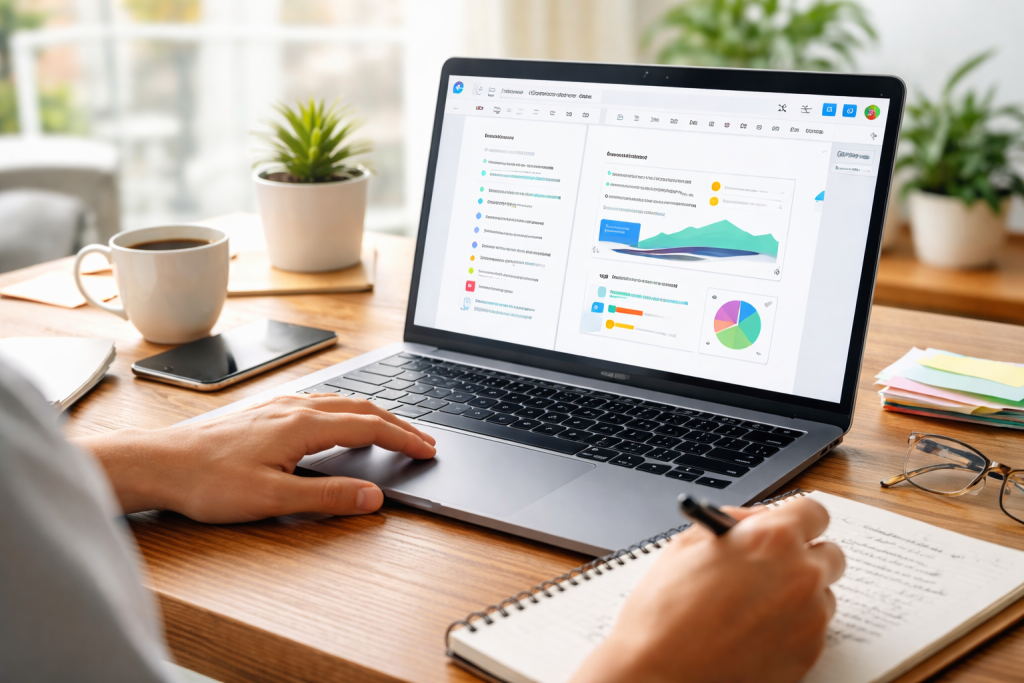
The journey to enhanced productivity often begins with optimizing how you approach your tasks. Google Docs provides an intuitive and flexible platform that can be molded to fit diverse working styles. By understanding and implementing specific strategies, you can significantly reduce wasted time and effort, allowing you to focus on the core of your work.
Contents
- 1 Embracing Cloud-Native Advantages
- 2 Intelligent Content Creation Tools
- 3 Shared Editing and Permissions
- 4 Communication within the Document
- 5 Leveraging Google Drive’s Structure
- 6 Utilizing Document Naming Conventions
- 7 Enhancing Readability and Structure
- 8 Visual Appeal and Branding
- 9 Navigation and Editing Shortcuts
- 10 Formatting and Command Shortcuts
- 11 Utilizing the Template Gallery
- 12 Creating Your Own Custom Templates
- 13 Automation and Scripting with Google Apps Script
- 14 Data Analysis and Visualization Tools
- 15 The Google Workspace Ecosystem
- 16 Third-Party Integrations for Enhanced Workflows
Embracing Cloud-Native Advantages
The inherent cloud-based nature of Google Docs is its most significant advantage for streamlining workflows. Unlike traditional desktop applications, your documents are seamlessly saved and accessible from any device with an internet connection. This eliminates the need for constant saving, worrying about file compatibility, or carrying multiple USB drives.
Real-time Saving and Version History
One of the most understated yet powerful features for workflow efficiency is Google Docs’ automatic, real-time saving. Every keystroke is captured, preventing data loss from unexpected crashes or power outages. Furthermore, the robust version history allows you to revert to any previous iteration of your document. This is invaluable for tracking changes, undoing mistakes without fear, or recovering accidentally deleted content. Simply navigate to “File” > “Version history” > “See version history” to explore and restore past versions.
Cross-Device Accessibility
The ability to start a document on your desktop at work, make edits on your tablet during your commute, and finalize it on your laptop at home is a workflow game-changer. The seamless syncing across devices ensures that your latest work is always at your fingertips, eliminating the friction of transferring files and maintaining consistency.
Intelligent Content Creation Tools
Beyond basic text editing, Google Docs offers intelligent features that can accelerate content creation and refinement. Leveraging these tools judiciously can lead to significant time savings.
Voice Typing for Rapid Input
For those who find typing cumbersome or wish to capture ideas quickly, Voice Typing is a revelation. Accessible by going to “Tools” > “Voice typing,” this feature allows you to dictate your thoughts directly into the document. With a decent microphone and a clear speaking voice, you can draft content remarkably faster than traditional typing. It’s particularly useful for brainstorming sessions or capturing lengthy thoughts.
Explore Tool for Research and Citation
The “Explore” tool, found under “Tools” > “Explore,” acts as a powerful research assistant integrated directly into your document. You can search the web, find relevant images, and even add citations without leaving Google Docs. This significantly speeds up the research process, reducing the need to constantly switch between browser tabs. Selecting text and then using the Explore tool will often provide context-specific search results.
Collaboration is often the engine of productivity, and Google Docs excels in fostering seamless teamwork. Its real-time collaborative environment allows multiple users to work on the same document simultaneously, fostering transparency and reducing communication bottlenecks.
The core of Google Docs’ collaborative power lies in its intuitive sharing and permission system.
Inviting Collaborators and Setting Roles
Sharing a document is as simple as clicking the “Share” button. You can invite specific individuals via their email addresses or generate a shareable link. Crucially, you can assign different permission levels: “Viewer” (can only view), “Commenter” (can view and add comments), and “Editor” (can view, comment, and make direct changes). Granular control over these permissions ensures that collaborators contribute appropriately and prevents accidental edits to sensitive sections.
Real-time Cursors and Presence Indicators
Witnessing your colleagues’ cursors move in real-time as they edit the document provides an unparalleled sense of collaboration. You can see who is working on what section, preventing redundant efforts and facilitating immediate interaction. Colored cursors clearly identify each user, enhancing clarity during live editing sessions.
Communication within the Document
Effective communication is vital for successful collaboration. Google Docs offers integrated tools to facilitate discussions and feedback directly within the document itself.
Comments and Suggestions
The commenting feature is a cornerstone of collaborative review. You can highlight text and add comments to ask questions, provide feedback, or suggest changes. These comments appear in a sidebar and can be resolved or replied to, creating a clear thread of discussion. The “Suggesting” mode (accessed from the pencil icon at the top right) allows collaborators to propose edits that can then be accepted or rejected by the document owner or other editors, functioning as a form of tracked changes.
In-Document Chat
For quick, informal discussions pertinent to the document, Google Docs offers a chat function. This is accessible when multiple users are actively working on the document and is particularly useful for clarifying points or making rapid decisions without diverting to external chat applications.
A cluttered digital workspace can be a significant impediment to productivity. Google Docs provides several ways to keep your documents organized, ensuring you can find what you need when you need it.
Leveraging Google Drive’s Structure
Google Docs lives within Google Drive, a cloud storage service that offers robust organizational capabilities. Mastering Drive’s features is essential for maintaining a tidy Google Docs ecosystem.
Folders and Subfolders
The most fundamental organizational tool is the folder system. Create logical folders and subfolders to categorize your documents by project, client, department, or any other relevant criteria. Drag and drop documents into their designated folders to maintain order. Regularly reviewing and refining your folder structure can prevent the accumulation of digital clutter.
Starred Documents and Recent Files
Google Drive allows you to “star” important documents, making them easily accessible from the “Starred” section in the left-hand menu. Additionally, the “Recent” section provides quick access to files you’ve recently accessed or modified, reducing the need to navigate through multiple folders.
Utilizing Document Naming Conventions
A consistent and descriptive naming convention is crucial for effective organization.
Clear and Concise Titles
Avoid ambiguous or overly generic document titles. Instead, opt for titles that clearly indicate the document’s content and purpose. For example, instead of “Report,” use “Q3 Sales Report – Marketing Team” or “Project X – Meeting Minutes – 2023-10-27.” This makes searching and identifying documents much easier.
Incorporating Dates and Keywords
Including dates (in a consistent format, e.g., YYYY-MM-DD) and relevant keywords can significantly improve searchability. This allows you to easily retrieve documents based on timeframes or specific topics.
While content is king, presentation matters. Effective formatting enhances readability, professionalism, and the overall impact of your documents. Google Docs offers a comprehensive suite of formatting tools to achieve this.
Enhancing Readability and Structure
Proper formatting guides the reader through your document, making it easier to digest information.
Styles for Consistent Formatting
Google Docs’ Styles feature is a powerful tool for maintaining consistency. Instead of manually formatting headings, subheadings, and body text repeatedly, define styles for each. You can access and modify styles by clicking the “Formats” menu and selecting “Paragraph styles.” Applying styles ensures uniform font, size, and spacing across your document, making it look polished and professional. It also allows for easy updates; changing a style will instantly update all instances where that style has been applied.
Bulleted and Numbered Lists for Clarity
When presenting information, using bulleted or numbered lists can break down complex ideas into digestible points. Google Docs offers easy tools to create these lists, and you can customize their appearance with different bullet types and numbering schemes. Properly formatted lists improve scannability and comprehension.
Visual Appeal and Branding
Formatting isn’t just about readability; it’s also about creating a visually appealing document that aligns with your brand.
Font Choices and Typography
Selecting appropriate fonts and managing font sizes is crucial for aesthetic appeal and readability. Google Docs offers a wide selection of fonts, and you can even upload custom fonts. Experiment with different font pairings for headings and body text to create a distinct visual identity for your documents. Pay attention to line spacing and paragraph margins to prevent text from appearing cramped.
Images, Tables, and Insertable Objects
Incorporating images, tables, and other visual elements can significantly enhance the engagement and understanding of your content. Google Docs allows you to easily insert images from your computer, the web, or Google Drive. Tables can be created and formatted to present data clearly. You can also insert drawings, charts, and even other Google Docs or Sheets directly into your document, creating a dynamic and integrated information hub.
For power users and those looking to shave valuable minutes off their daily tasks, keyboard shortcuts are indispensable. Mastering a few key shortcuts can dramatically increase your speed and efficiency within Google Docs.
These shortcuts focus on moving around your document and making quick edits.
- Ctrl + Left/Right Arrow (Cmd + Left/Right Arrow on Mac): Move the cursor one word at a time.
- Ctrl + Up/Down Arrow (Cmd + Up/Down Arrow on Mac): Move the cursor to the beginning or end of the paragraph.
- Ctrl + Home (Cmd + Home on Mac): Move to the beginning of the document.
- Ctrl + End (Cmd + End on Mac): Move to the end of the document.
Editing and Selection
- Ctrl + C (Cmd + C on Mac): Copy selected text or objects.
- Ctrl + V (Cmd + V on Mac): Paste copied content.
- Ctrl + X (Cmd + X on Mac): Cut selected text or objects.
- Ctrl + Z (Cmd + Z on Mac): Undo the last action.
- Ctrl + Shift + Z (Cmd + Shift + Z on Mac): Redo the last undone action.
- Shift + Arrow Keys: Select text character by character.
- Ctrl + Shift + Arrow Keys (Cmd + Shift + Arrow Keys on Mac): Select text word by word.
- Shift + Ctrl + Home/End (Shift + Cmd + Home/End on Mac): Select all text from the cursor to the beginning or end of the document.
Formatting and Command Shortcuts
These shortcuts allow for quick application of formatting or execution of common commands.
Formatting Quick Access
- Ctrl + B (Cmd + B on Mac): Apply bold formatting.
- Ctrl + I (Cmd + I on Mac): Apply italic formatting.
- Ctrl + U (Cmd + U on Mac): Apply underline formatting.
- Ctrl + ] (Cmd + ] on Mac): Increase font size by one increment.
- Ctrl + [ (Cmd + [ on Mac): Decrease font size by one increment.
Command Execution
- Ctrl + F (Cmd + F on Mac): Open the “Find and Replace” dialog.
- Ctrl + Shift + H (Cmd + Shift + H on Mac): Open the “Find and Replace” dialog with advanced options.
- Ctrl + K (Cmd + K on Mac): Insert a hyperlink.
- Alt + Shift + 5 (Option + Shift + 5 on Mac): Insert a special character.
Templates are pre-designed documents that provide a starting point for various purposes, saving you the time and effort of creating documents from scratch. Google Docs offers a robust template gallery and the ability to create your own custom templates.
Utilizing the Template Gallery
The Google Docs template gallery is a treasure trove of professionally designed documents.
Exploring Pre-built Templates
To access the gallery, simply open a new Google Doc. You’ll see an option for “Template gallery” at the top of the screen. This gallery is categorized into sections like “Work,” “Personal,” “Education,” and “Sales.” Within these categories, you’ll find templates for resumes, letters, reports, proposals, invoices, and much more. Browsing these templates can spark ideas and provide a structured foundation for your own work.
Customizing Existing Templates
Once you select a template, it opens as a new document that you can then customize to your specific needs. Replace placeholder text, adjust formatting, and add your own content. This approach significantly reduces the initial setup time for common document types, allowing you to jump straight into content creation.
Creating Your Own Custom Templates
For recurring document needs specific to your workflow, creating custom templates can be a significant time-saver.
Designing and Saving Your Master Document
Create a document that serves as your ideal template. This could be a standardized report format, a meeting agenda structure, or a project proposal outline. Once you’re satisfied with the layout, formatting, and any pre-filled information, you can save it as a template.
Making Templates Accessible to Your Team
To make your custom templates available to your team, you can save them in a shared Google Drive folder and then create a link to that specific document. When others click this link, they will be prompted to “Use template,” which creates a copy for them to edit. This ensures consistency across your organization for commonly used document types.
Beyond the everyday functionalities, Google Docs offers a suite of advanced features that can elevate your productivity and document creation to a professional level.
Automation and Scripting with Google Apps Script
For those who want to go beyond manual tasks, Google Apps Script provides a powerful way to automate workflows within Google Docs and across the Google Workspace.
Automating Repetitive Tasks
Google Apps Script is a JavaScript-based scripting language that allows you to create custom functions, build add-ons, and automate tasks that would otherwise be tedious to perform manually. Examples include automatically generating personalized form letters from a spreadsheet, creating a table of contents with advanced customization, or even sending email notifications based on document changes.
Integrating with Other Google Services
Apps Script excels at integrating Google Docs with other Google services like Sheets, Forms, and Gmail. This opens up a world of possibilities for creating dynamic and interconnected workflows. For instance, you can pull data from a Google Sheet into a Google Doc or use a Google Form submission to automatically populate a document.
Data Analysis and Visualization Tools
While not a dedicated spreadsheet program, Google Docs can leverage data for more impactful presentations.
Linking to Google Sheets for Dynamic Data
Embedding charts and tables from Google Sheets into your Google Docs allows for dynamic data visualization. When the data in the linked Google Sheet is updated, the charts and tables in your Google Doc will automatically reflect those changes. This ensures that your reports and presentations always display the most current information. To link, simply copy and paste a chart or table from Google Sheets into Google Docs, and you’ll be prompted to “Link to spreadsheet.”
Using Add-ons for Enhanced Functionality
Google Docs’ extensibility through add-ons is a game-changer for power users.
Exploring and Installing Add-ons
The Google Workspace Marketplace offers a vast array of add-ons designed to enhance Google Docs’ capabilities. These can range from advanced grammar checkers and citation managers to tools for creating diagrams, mind maps, and even managing project timelines. To access the add-on marketplace, go to “Extensions” > “Add-ons” > “Get add-ons.”
Popular and Useful Add-ons
Some highly recommended add-ons include:
- Grammarly: For advanced grammar, spelling, and punctuation checks.
- Lucidchart: For creating professional diagrams, flowcharts, and mockups directly within your document.
- Zotero/Mendeley: For managing citations and bibliographies, simplifying academic writing.
- Table of Contents Builder: For creating easily customizable and updateable tables of contents.
The true power of Google Docs is amplified when it seamlessly integrates with other tools in your productivity arsenal. This creates a connected ecosystem where information flows effortlessly, reducing manual data entry and improving overall efficiency.
The Google Workspace Ecosystem
Google Docs is part of the larger Google Workspace suite, which includes Gmail, Google Sheets, Google Slides, Google Calendar, and Google Drive. Leveraging these tools together offers a cohesive and powerful productivity experience.
Seamless Sharing and Collaboration
As mentioned earlier, sharing documents between Google Workspace applications is intuitive. You can easily insert links to Google Sheets or Slides within your Google Docs or create Google Docs from within Google Drive. This interconnectedness ensures that your projects are managed cohesively.
Using Gmail for Document Collaboration
Gmail and Google Docs integrate beautifully. You can share documents directly from Gmail, and you can even create new Google Docs from email content. This streamlines communication and reduces the need to download and re-upload attachments.
Third-Party Integrations for Enhanced Workflows
Beyond the Google ecosystem, Google Docs integrates with a multitude of popular third-party productivity applications, further expanding its reach and utility.
Project Management Tools
Tools like Asana, Trello, and Monday.com can integrate with Google Docs, allowing you to link documents directly to tasks or projects. This means all relevant information for a specific task is easily accessible, eliminating the need to search through multiple platforms.
Note-Taking and Knowledge Management Apps
Applications such as Evernote or Notion often provide integrations that allow you to embed or link Google Docs within your notes or knowledge bases. This creates a centralized repository for your information, making it easier to cross-reference and manage diverse project assets.
CRM and Sales Tools
Customer Relationship Management (CRM) software often integrates with Google Docs to streamline document creation for proposals, contracts, and client communications. This allows sales teams to quickly generate personalized documents based on client data stored in the CRM.
By understanding and implementing these expert tips and tricks, you can transform Google Docs from a simple word processor into a powerful productivity engine. From streamlining your workflow and collaborating effectively to organizing your documents, mastering formatting, and leveraging advanced features, Google Docs offers a comprehensive solution for individuals and teams aiming to achieve more, with greater ease and efficiency.

About the Author
Muqadas Ali is the founder of SmartLearningWay with over 5 years of experience in blogging and digital learning. His mission is to help students and professionals improve productivity using simple methods and modern tools.