

In today’s evolving work landscape, the home office has transitioned from a temporary solution to a cornerstone of modern productivity. As we increasingly embrace remote and hybrid work models, the nuances of our home office setups become paramount. While a comfortable chair and a reliable internet connection are often high on the priority list, one unsung hero often overlooked is the monitor. Far from a mere display, a high-quality monitor is a powerful tool capable of revolutionizing your efficiency, comfort, and overall work experience. It’s about working smarter, not harder, and a premium monitor is your gateway to achieving that.
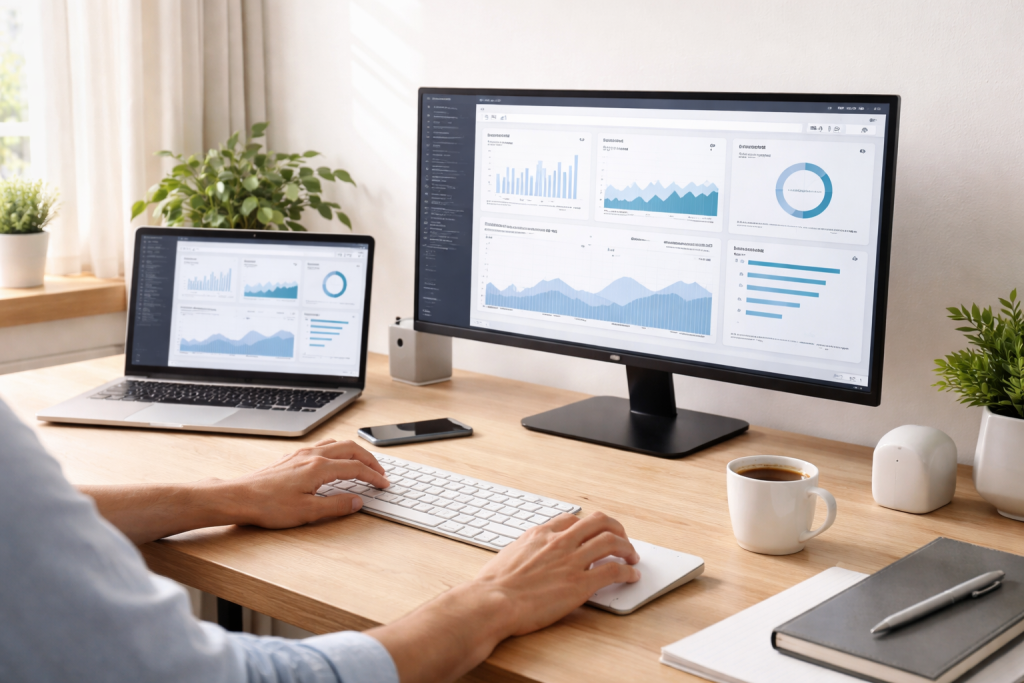
It’s easy to dismiss a monitor as a simple screen, a conduit for viewing information. However, this perspective fundamentally undervalues its role in a productive home office environment. A low-quality monitor can be a significant bottleneck, silently eroding your efficiency and even impacting your health.
Contents
- 1 The Hidden Costs of a Subpar Display
- 2 Beyond the Basics: Elevating Your Workflow
- 3 Assessing Your Workflow and Requirements
- 4 Evaluating Your Available Space
- 5 Resolution and Screen Size
- 6 Panel Technology and Color Accuracy
- 7 Ergonomics and Connectivity
- 8 Single Large Monitor vs. Dual Monitor Setup
- 9 Ultrawide Monitors
- 10 Curved Monitors
- 11 For the Everyday Productivity User
- 12 For Creatives and Designers
- 13 For Data Analysts and Coders
- 14 Optimal Placement and Ergonomics
- 15 Utilizing Monitor Features and Software
- 16 Reduced Eye Strain and Improved Comfort
- 17 Enhanced Multitasking and Workflow Efficiency
- 18 Greater Accuracy and Precision in Work
- 19 USB-C Connectivity and Docking Capabilities
- 20 KVM Switches and Daisy Chaining
- 21 OLED and Mini-LED Displays
- 22 Improved Aesthetics and Desk Organization
- 23 Creating a More Immersive and Enjoyable Workspace
- 24 A Long-Term Investment in Your Productivity and Health
- 25 Boosting Your Professional Image and Capabilities
The Hidden Costs of a Subpar Display
Consider the common frustrations associated with an inadequate monitor: constant squinting at small text, the incessant toggling between applications due to limited screen real estate, or the eye strain that creeps in after just a few hours. These aren’t minor inconveniences; they’re productivity killers. Each moment spent struggling with your display detracts from actual work. Moreover, prolonged exposure to poor visual ergonomics can lead to headaches, blurred vision, and even exacerbate underlying eye conditions. Investing in a quality monitor is, therefore, an investment in your well-being and sustained productivity. It’s about providing your eyes with the clear, comfortable viewing experience they deserve, allowing them to focus on the task at hand rather than the shortcomings of the display.
Beyond the Basics: Elevating Your Workflow
A superior monitor does more than just show you information; it enhances your entire workflow. Imagine being able to have multiple applications open side-by-side without feeling cramped or being able to view large spreadsheets and intricate design projects with crystal-clear detail. This expanded visual workspace reduces the mental load of managing windows, leading to a more seamless and intuitive working experience. For tasks requiring precision, such as graphic design, video editing, or even detailed data analysis, the difference between a standard monitor and a high-resolution, color-accurate display is night and day. It allows for more nuanced decisions and, ultimately, higher-quality output.
With a myriad of options available, selecting the ideal monitor can feel overwhelming. However, by understanding your specific needs and priorities, you can navigate the market with confidence and make an informed decision.
Assessing Your Workflow and Requirements
Before diving into specifications, take a moment to analyze your typical workday. Are you primarily dealing with text documents and emails, or do you frequently engage in graphically intensive tasks? Do you need to juggle many windows simultaneously, or is a single, focused display sufficient? Consider the applications you use most often. A software developer might prioritize screen size and resolution for coding, while a content creator would place a higher emphasis on color accuracy and panel type. Someone in finance might benefit significantly from an ultrawide monitor for sprawling spreadsheets. Understanding these aspects of your workflow is the foundational step in narrowing down your choices.
Evaluating Your Available Space
The physical constraints of your home office play a crucial role in monitor selection. Measure your desk space carefully. A large, immersive ultrawide monitor might seem appealing, but it is impractical if it leaves no room for your keyboard, mouse, and other peripherals. Consider the viewing distance as well; a monitor that’s too large for your desk can lead to neck strain as you constantly move your head to take in the entire display. Conversely, a monitor that’s too small might force you to lean in, causing slouching and discomfort. Balance your desire for visual real estate with the practical realities of your workspace.
Once you understand your needs and space, you can discuss the technical specifications that define a truly excellent home office monitor.
Resolution and Screen Size
The relationship between these two features is intrinsic. Generally, the higher the resolution, the sharper and more detailed the image will be, allowing you to fit more information onto the screen. Most home office users consider 1080p (Full HD) as the minimum resolution, but 1440p (QHD) offers a significant upgrade in clarity and screen real estate without incurring significant costs. For those who demand the absolute best, 4K (UHD) provides stunning detail, although it often comes at a higher price and requires a more powerful graphics card to drive it smoothly. Screen size is a matter of preference and proximity. A 24-inch monitor might be ideal for a compact desk, while a 27-inch or 32-inch monitor offers a more expansive view for multitaskers. Ultrawide monitors (21:9 or 32:9 aspect ratios) are gaining popularity for their ability to replace multi-monitor setups, providing a seamless panoramic view.
Panel Technology and Color Accuracy
The type of display panel affects everything from viewing angles to color reproduction. IPS (In-Plane Switching) panels are generally considered the best for home office use due to their excellent color accuracy and wide viewing angles, making them ideal for collaborative work or tasks where precise color representation is crucial. VA (Vertical Alignment) panels offer excellent contrast ratios, resulting in deeper blacks, but sometimes at the expense of viewing angles. TN (Twisted Nematic) panels are typically the least expensive but often suffer from poor color reproduction and narrow viewing angles, making them less suitable for professional home office use where visual quality is important. Designers, photographers, and video editors need monitors with high sRGB or Adobe RGB coverage (e.g., 99% sRGB) and factory calibration to ensure accurate color work.
Ergonomics and Connectivity
A monitor’s adjustability is important for maintaining good posture and preventing strain. Look for monitors with adjustable height, tilt, swivel, and pivot (for portrait mode). VESA mount compatibility is also important if you plan to use a monitor arm, which offers even greater flexibility in positioning. Regarding connectivity, ensure the monitor has the necessary ports for your devices. HDMI and DisplayPort are standard, but USB-C is becoming increasingly prevalent, offering a single cable solution for video, data, and power delivery, which is incredibly convenient for laptop users. Built-in USB hubs can also help reduce cable clutter on your desk.
The market offers a diverse range of monitors, each catering to specific needs and budgets. Understanding the pros and cons of popular formats can help you make an informed choice.
Single Large Monitor vs. Dual Monitor Setup
The debate between a single large monitor and a dual-monitor setup largely comes down to personal preference and workflow. A single large monitor, especially an ultrawide, provides a continuous, uninterrupted workspace, which can be beneficial for tasks requiring a broad overview or seamless transitions between applications. However, some users find it challenging to manage window placement and prefer the distinct separation offered by two monitors. Dual monitors allow for easy comparison of documents side-by-side and provide dedicated screens for specific applications. The drawback can be the bezel in the middle, which can break the visual continuity.
Ultrawide Monitors
Ultrawide monitors are gaining significant traction in the home office space for their ability to simulate a dual-monitor setup without the bezel interruption. They are particularly well-suited for professionals who work extensively with spreadsheets, timelines, video editing, or any application that benefits from a wide horizontal canvas. The immersive nature of an ultrawide can also enhance focus and reduce the need for constant window switching. However, they do require ample desk space and may not be ideal for tasks that benefit more from vertical screen real estate.
Curved Monitors
Curved monitors are designed to offer a more immersive viewing experience by subtly curving the screen, bringing the edges closer to your field of vision. This can be particularly appealing for larger monitors, as it helps to reduce eye strain by maintaining a more consistent focal distance across the entire display. While often associated with gaming, curved monitors can also benefit home office users, especially those working with large amounts of information, by subtly improving visual comfort. However, the benefits are more pronounced on larger screens, and a curved display isn’t typically a primary driver for office productivity unless coupled with other strong features.
Ultimately, the “best” monitor is subjective and depends entirely on your individual circumstances. There’s no one-size-fits-all solution.
For the Everyday Productivity User
If your main tasks involve email, web browsing, word processing, and occasional video calls, a 24-inch or 27-inch 1440p IPS monitor offers an excellent balance of screen real estate, clarity, and affordability. Focus on excellent ergonomics and reliable connectivity. Features like a built-in webcam might be a bonus if you frequently participate in video conferences.
For Creatives and Designers
For those in creative fields—graphic design, video editing, photography—color accuracy is paramount. Look for monitors with IPS panels that offer high sRGB and Adobe RGB coverage, factory calibration, and ideally, support for HDR (High Dynamic Range) for a wider range of colors and contrast. A 4K resolution is often preferred for intricate detail work, and a larger screen size (27-inch or 32-inch) will provide ample canvas.
For Data Analysts and Coders
Professionals who deal with extensive spreadsheets, data sets, or lines of code will greatly benefit from an ultrawide monitor (preferably 34-inch or larger) or a dual-monitor setup that provides ample horizontal space. High resolution, such as 1440p or even 4K, is crucial for displaying more information without constant scrolling. The ability to pivot a monitor into portrait mode can also be a game-changer for code or document review.
Once you’ve chosen your ideal monitor, proper setup is critical to unlock its full potential and maximize your comfort.
Optimal Placement and Ergonomics
Position your monitor directly in front of you, with the top of the screen at or slightly below eye level. This prevents neck strain from looking up or down. Maintain an arm’s length distance from the screen to reduce eye strain. If you have dual monitors, angle them slightly towards you. Utilize your monitor’s ergonomic adjustments—height, tilt, and swivel—to find the most comfortable viewing position. Ensure there’s no glare from windows or overhead lighting on your screen, which can cause reflections and eye fatigue.
Utilizing Monitor Features and Software
Most modern monitors come with various settings that can enhance your viewing experience. Adjust brightness and contrast to suit your environment. Experiment with color profiles. Many operating systems also offer features like “Night Light” or “Flux,” which reduce blue light emissions in the evening, helping to alleviate eye strain and improve sleep patterns. Consider using window management software (like FancyZones for Windows or Magnet for macOS) to efficiently organize and snap applications into various layouts across your expanded screen real estate.
The investment in a high-quality monitor is not merely an expense; it’s a strategic decision that pays dividends in various aspects of your work life.
Reduced Eye Strain and Improved Comfort
Perhaps the most immediate and tangible benefit is the reduction in eye strain and physical discomfort. A sharp, flicker-free display with appropriate brightness levels and blue light filters dramatically lessens fatigue, allowing you to work longer and more comfortably without the distracting effects of worn-out eyes and headaches. This directly translates to increased focus and sustained productivity throughout the day.
Enhanced Multitasking and Workflow Efficiency
A generous screen size and high resolution empower you to multitask more effectively. You can have multiple applications open and visible at once, eliminating the constant need to minimize and maximize windows. This seamless workflow reduces cognitive load and allows for a more fluid thought process, leading to quicker task completion and fewer errors. For example, a writer can have their document, research, and communication tools all visible simultaneously without feeling overwhelmed.
Greater Accuracy and Precision in Work
For anyone whose work demands attention to detail, a high-quality monitor is indispensable. Whether you’re scrutinizing spreadsheets, refining images, aligning design elements, or proofreading complex documents, the clarity and color accuracy offered by a superior display ensure that you can perform your tasks with greater precision and confidence. This leads to higher-quality output and reduces the likelihood of costly mistakes.
The monitor market is continuously evolving, with exciting new technologies emerging that further enhance the home office experience.
USB-C Connectivity and Docking Capabilities
USB-C has revolutionized monitor connectivity, offering a single cable solution for video, power delivery (charging your laptop), and data transfer (for integrated USB hubs). Many modern monitors now act as a full-fledged docking station, simplifying your desk setup, reducing cable clutter, and making it incredibly convenient to connect and disconnect your laptop. This is a game-changer for those who frequently switch between working at their desk and on the go.
KVM Switches and Daisy Chaining
For users with multiple computers (e.g., a work laptop and a personal desktop), monitors with built-in KVM (Keyboard, Video, Mouse) switches are a godsend. They allow you to control multiple computers with a single keyboard and mouse, switching seamlessly between inputs. Daisy chaining, facilitated by DisplayPort 1.2 or later, allows you to connect multiple monitors to your computer using a single cable from the graphics card, simplifying cable management for multi-monitor setups.
OLED and Mini-LED Displays
While traditionally more common in high-end televisions, OLED and Mini-LED technologies are increasingly making their way into desktop monitors. OLED monitors offer unparalleled contrast ratios, perfect blacks, and vibrant colors due to each pixel emitting its light. Mini-LED displays use significantly more, smaller LEDs for backlighting, allowing for more precise local dimming zones and achieving brightness levels that surpass traditional LED monitors, resulting in superior HDR performance and contrast. While these are often premium options, their visual fidelity can be transformative for specific professional needs.
Ultimately, the right monitor transcends a simple technical specification. It’s about crafting an environment that supports your focus, creativity, and overall well-being.
Improved Aesthetics and Desk Organization
A sleek, well-designed monitor can significantly elevate the aesthetic appeal of your home office. Many modern monitors feature thin bezels and attractive stands, contributing to a clean and professional look. Monitors with thoughtful cable management solutions further reduce clutter, creating a more organized and inviting workspace. A tidy desk often leads to a tidier mind, fostering greater concentration.
Creating a More Immersive and Enjoyable Workspace
Whether it’s the expansive view of an ultrawide, the pristine colors of an IPS display, or the subtle curve that draws you in, the right monitor creates a more immersive and enjoyable workspace. This isn’t just about entertainment; it’s about making your work environment more pleasant, which can contribute to higher job satisfaction and sustained motivation. A comfortable and visually appealing setup can transform dreaded tasks into more manageable ones.
In the grand scheme of home office expenses, a high-quality monitor might seem like a luxury. However, when viewed through the lens of productivity, comfort, and long-term health, it quickly becomes a sound investment.
A Long-Term Investment in Your Productivity and Health
Unlike many tech gadgets that quickly become obsolete, a good monitor has a substantial lifespan. It’s a foundational component of your setup that will serve you well for years to come. The initial outlay is offset by the tangible benefits of increased efficiency, reduced eye strain, and improved comfort, all of which contribute to better work output and a healthier work-life balance. Consider it an investment in your personal and professional longevity.
Boosting Your Professional Image and Capabilities
For those who rely on visual presentations, remote collaborations, or client-facing video calls, a crisp, clear, and professional-looking monitor subtly enhances your professional image. It demonstrates attention to detail and a commitment to quality. Moreover, the enhanced capabilities a superior monitor provides allow you to tackle more complex tasks with greater ease and confidence, ultimately broadening your professional horizons. Don’t underestimate the power of a setup that empowers you to do your best work.

About the Author
Muqadas Ali is the founder of SmartLearningWay with over 5 years of experience in blogging and digital learning. His mission is to help students and professionals improve productivity using simple methods and modern tools.


